Would you like a quote? Simply select the products you need, choose your quantity, and enter your contact information. We’ve included a few demonstrations to guide you. Just follow the steps below:
Begin a Quote Request
1. Access My Quotes
Open My Quotes in the top, right-hand corner of your screen to begin. Consider this your “sales cart,” which will be empty.
2. Add Your Products
Click Browse All Products or explore product options using the header navigation.
After selecting a product, specify how you would like to customize it. Include any additional options or features. Adjust the quantity as needed.
When you’re ready, click Build a Quote. A quote cart will slide in from the right side of the screen; your selected products will appear.
For some products, the system will prompt you to add compatible chair or table carts to help you transport and store the products you selected.
3. Start Your Request
Click Start Request to begin the quoting process.
4. Review Your Cart
On the following page, review your selections.
You can update quantities or remove items at any time.
When everything looks right, click Continue to move to checkout to obtain a quote.
5. Choose How to Check Out
You can proceed in one of three ways:
- Continue as a guest
- Sign in to your account
- Create an account (you will need to set a password)
Guest Checkout
6. Enter Your Information
Fill in the required fields with your contact and shipping details.
7. Submit Your Request
Click Submit Request to initiate your quote.
You will see a confirmation page that includes:
- Your quote request number
- A summary of the products
- Your assigned sales representative
- A confirmation of your shipping address
You will not see pricing, taxes, or shipping fees at this stage.
8. Receive Confirmation
Check your email for a confirmation message with the same details.
Your sales representative will contact you within 24–48 hours with your complete quote.
Account Checkout
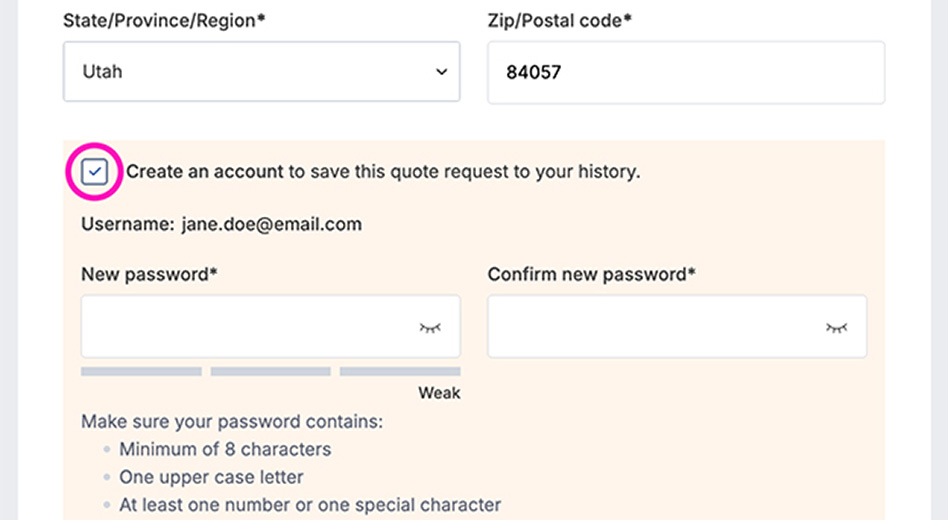
6. Sign In or Create an Account
Sign in to your account or create one to save your information for future use.
7. Add or Confirm Your Address
Enter or select your saved address.
8. Submit Your Request
Submit your quote request. Your sales representative will follow up with pricing and details within 24-48 hours.
Manage Your Quotes and Account
Use the account icon in the header to access your My Account dashboard.
From there, you can:
- View your quote request history
- See your assigned sales representative
- Review past quotes and sort by date
- View detailed quote information
- Manage your profile settings and addresses
- Update your email subscription preferences


